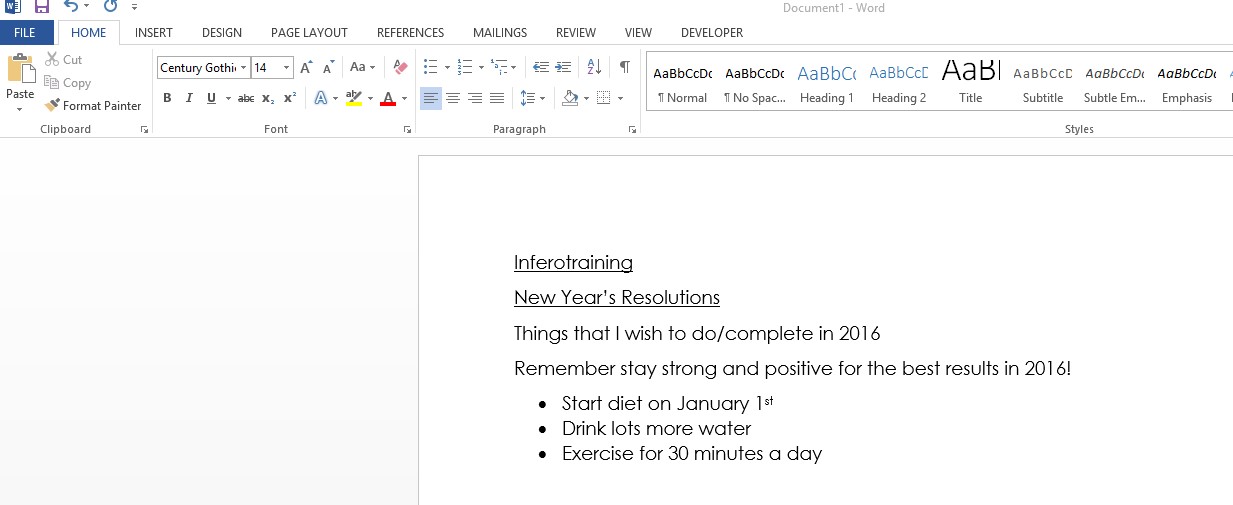
If you want to create a poster or letter document in Microsoft word, then it could be useful to use the Header option, to give your document a professional look. The header feature allows the user to add smart looking areas in the top, bottom and side margins of a document.
Why is using a header or footer useful? well many online forums would suggest that when sending a document with a header, employers see a strong level of professionalism and that it shows that you have a good knowledge of using Microsoft word.
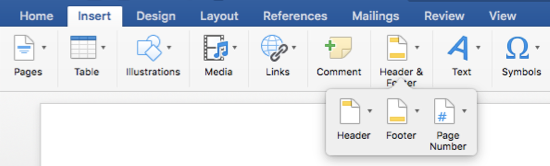
To use this feature, simply click the Insert Tab, and then in the Header and Footer group, Select either a header of footer.
From the Drop Down Menu below the Header option, Select which Design you would like.
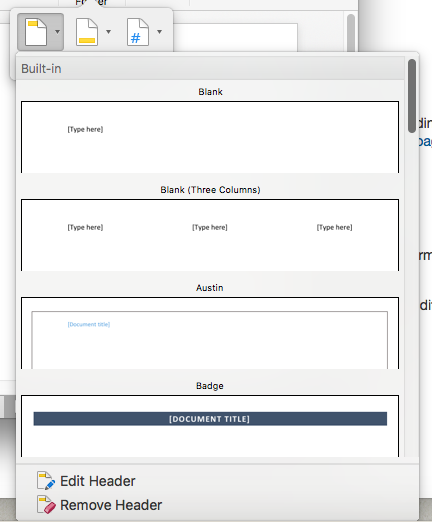
Once you have selected the Design Template then you can Customise it to how you like. To customise the header, select the Edit Header option shown at the bottom of the picture above. The customise steps are simple and easy to follow and it will give you the freedom to design exactly how you would like the header to look.
See our other Microsoft Word Hints and Tips.