Tag Archive for 'Microsoft Excel Course'

Microsoft Excel Tips: How to Personalize your Table

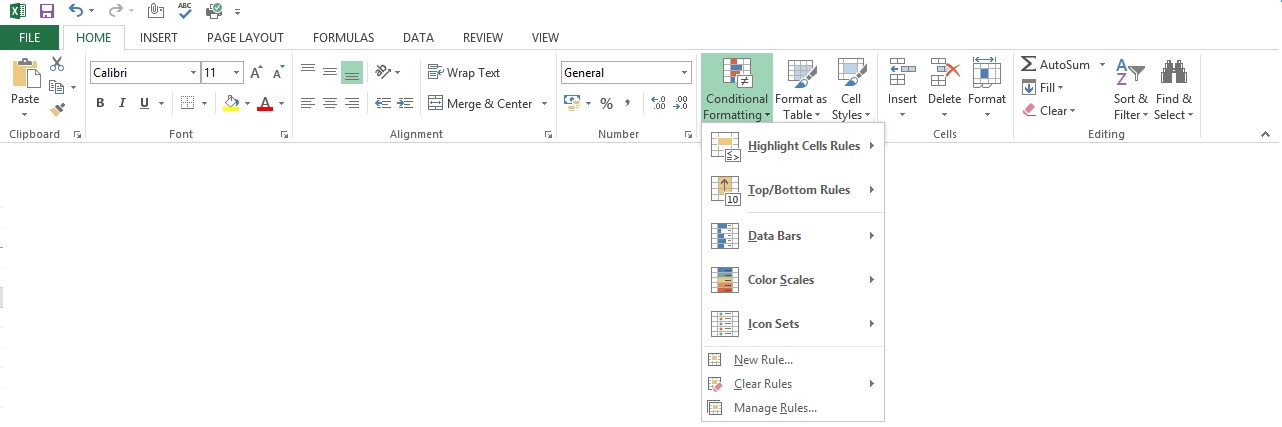
When you use Excel the table can look really boring and plain; however in the newer versions (2007  and 2010) you are able to customize your tables by using different font styles and colours as well. There are also different shades of colour and sizes of text you can use. To change you table here’s how to do it:


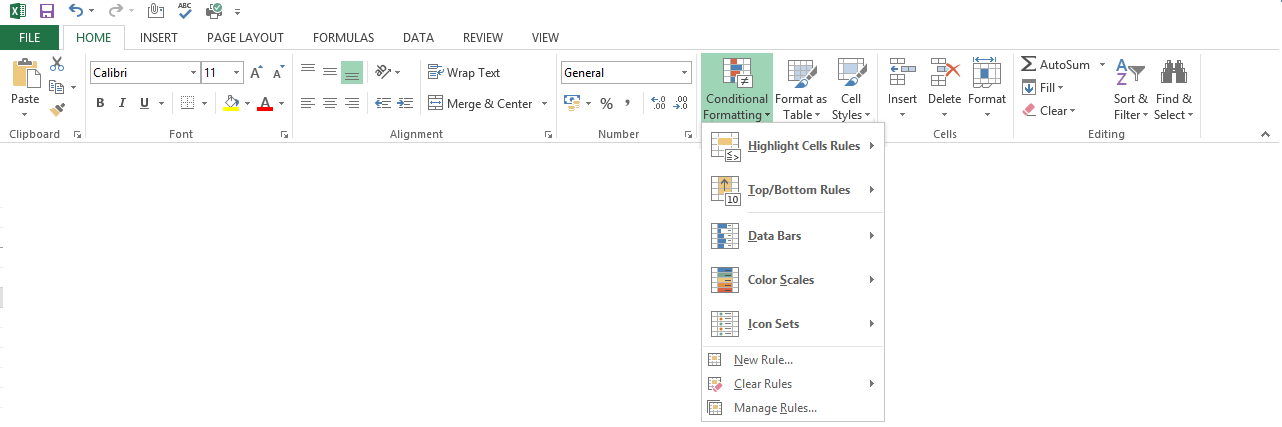
  1. Click on the Cell Styles link on the toolbar
    (highlighted in image)
  2.  

  3. This will give you a list of all the different styles that are available to you when making your table
  4.  

  5. Click on the cell you want to personalize and then choose the style you want.


Want more tips; just visit our Microsoft Excel Tips page

Microsoft Access Tips: Importing Data from Microsoft Excel

So you are currently using Excel to store a list of information but now that list has gotten too big to keep on scrolling through and has become a time consuming chore? You should import your data into Microsoft Access which offers you powerful database tools to handle all the information.


To start importing your data, follow these steps.


Step 1: Open Access and create a blank database. Once you have done this, Access automatically brings up a table. You can close this table as it isn’t needed.


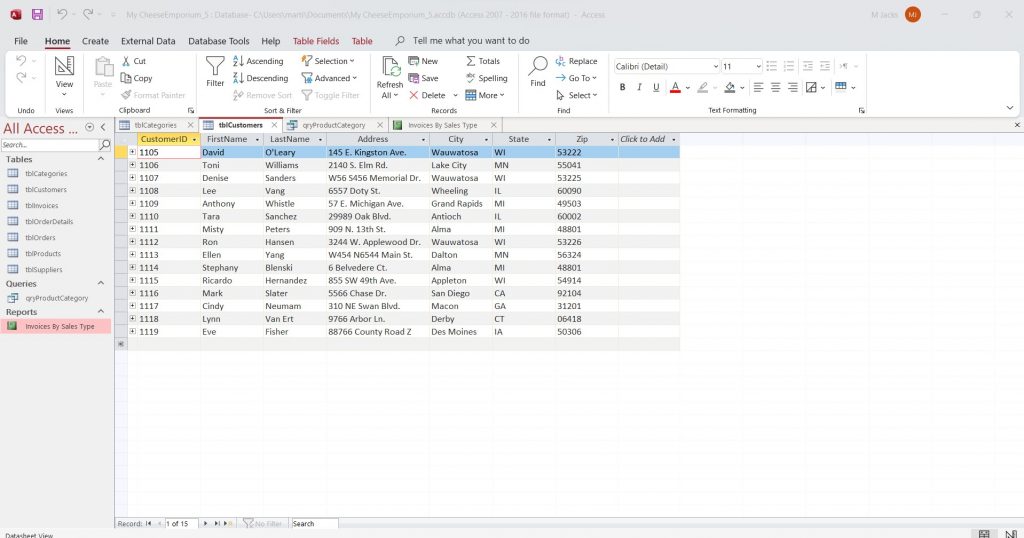
Step 2: Click the External Data tab at the top of the page and then select Excel in the Import category which will in turn bring up the Get External Data – Excel Spreadsheet wizard to help you input the data.


Step 3: Browse for the worksheet which contains the information that you would like to put in the Access database and then select the button labeled Import the source data into a new table in the current database. Click on OK to continue.


Step 4: If you have different worksheets in the same document, select which worksheet it is that you want to import and then click Next to continue.


Step 5: Next, if the spreadsheet you’re using has column heading in its first row, click the box, if not names will be generated and you’ll be able to change them later on. Then you click on Next again.


Step 6: The next screen gives you the option to leave any column that you don’t want to import out. In order to do this, you start by clicking on the first column in the preview area. If you don’t want to import that column into the table, put a check mark in the box next to Do not import field and move on to the next column. To change the name of a field, use the Field Name box to change it and then just select which type of data is in the column itself.


Step 7: Next you have to choose a Primary Key if you want one.


Step 8: Input a name for the table in the box under Import to Table and then click Finish.


Step 9: You’ll now be asked whether you want to save the import steps or not. If you are importing more than one worksheet with the same layout then you can choose this option to save you time importing future worksheets. Click close and your new table will be shown in your database.

Microsoft Excel Tips: Designating a Default Save folder

Whilst using Microsoft Excel, do you save all your Excel worksheets to a specific folder and are tired of searching for that folder each time you want to save a worksheet? Well in this tip, I will tell you how to set Excel up so that it saves to your designated folder each time.


First of all, click on the Microsoft Office button in the top left hand corner of the page and then scroll to the bottom to Excel Options.


You then select the Save tab at the side and look for the Default File Location box. In that box you put the folder which you want to save your Excel worksheets to which you can just copy and paste from the folder itself.


Then just click Save and you’re done.


Click to view Microsoft Excel Training Courses that Infero currently offers.

Click to view more Microsoft Excel Tips.

Microsoft Excel Tips – Taking Shortcuts in Excel 2007

Microsoft Excel ShortcutsWhile entering data in Excel worksheet you may find yourself using the keyboard a lot. If you take your hands off the keyboard to use the mouse, it will slow you down. An alternative is to use keyboard shortcuts instead of a mouse. Below are my 10 most favoured key shortcuts in Excel 2007! To use them, simply press two keys shown in the brackets < > simultaneously.


<Ctrl> + <A> – Selects an entire worksheet

<Ctrl> + <C> – Copies the selected cells

<Ctrl> + <V> – Pastes the selected cells

<Ctrl> + <X> – Cuts the selected cells

<Ctrl> + <Z> – Undoes the previous command, if possible

<Ctrl> + <Y> (or <F4>) – Repeats the last command or action, if possible.

<Ctrl> + <S> – Saves the current work

<F2> – Enables editing within a cell

<F11> – Creates a chart from the selected data.

<Alt> + <=> Inserts the AutoSum function.


If you are working on a very important worksheet, use <Ctrl> + <S> regularly to prevent your data from being lost accidentally.


Want more tips? Click on Microsoft Excel Tips & Tricks

5 Reasons Why I Prefer Microsoft Office Excel 2007

When I first time saw Microsoft Excel 2007 I thought I have a new annoying task to do – to learn excel. But after some playing with it I’ve realised how much I like this software. As time has gone by I prefer it. Here are 5 reasons why I prefer Excel 2007 to previous versions.


New level of limits

Microsoft Office Excel 2007 supports 1,048,576 rows and 16,384 columns. The number of rows has increased from roughly 65536 to 1.1 million; the number of columns has increased from 256 to over 16385! Columns now end at XFD instead of IV.

Office Excel 2007 also supports up to 16 million colours, which enhance visual appearance of graphic elements.


Improved sorting and filtering

Excel has always included sorting and filtering tools. With Excel 2007, the sorting and filtering options have been expanded. For example, you can now sort data by colour or by up to 64 levels (previously, you were limited to 3 levels).

Data can be filtered by colour or by dates. The AutoFilter dropdown list now displays more than 1000 items to choose from and multiple items to filter are available. Filtering capabilities can also be applied to data in PivotTables.


Powerful data visualisation tool

Do you need to highlight data when you are over or under budget or want to draw attention to the important data from a huge list?

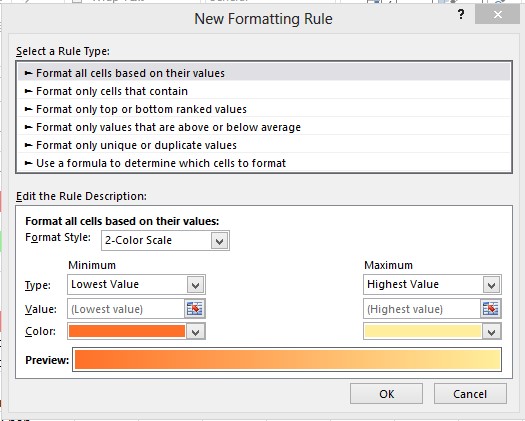
With enhanced conditional formatting features you can highlight trends in your data, find the highest and lowest data, find exceptions and annotate data into categories. Using colour scales, data bars and performance indication icons will help you to achieve this.


Easy to use PivotTables and Pivot Charts

No need anymore to drag data into drop zones, just select the fields that you want to see in a new PivotTable field list.

And after you’ve created a PivotTables enjoy easy sorting and filtering data within PivotTable data or apply conditional formatting.


PivotCharts are also much easier to create than before. The chart formatting that you apply will be maintained when you make changes to the PivotChart, which is a significant improvement from previous versions of Excel.


New Functions are added

Microsoft Excel 2007 has 343 functions with 51 new functions. New functions mainly are within 2 new categories – Engineering (39 functions) and Cube (7 functions). The remaining five are IFRROR, AVERAGEIF, AVERAGEIFS, SUMIFS, COUNTIFS


So, really Excel 2007 is the must to upgrade for everyone using Excel. And you know that Excel training will help you to learn those tricks to make your business life easier.


Want to know more how Microsoft Excel can help you? Click on Microsoft Excel Articles.

Microsoft Office Tips – How to Fix Errors Using Microsoft Office Diagnostics

Microsoft Office 2007 DiagnosticsIn Why to Use Microsoft Office Diagnostics we discussed the benefits and diagnostics options available. Here we are going to discuss how to use the diagnostics.


Before you start the diagnostics:

  • Run the diagnostics when you do not need to use your computer
  • Make sure you are connected to the Internet
  • Close other programmes
  • Make sure you have Microsoft Office installation disk in case there are problems and your program will need an access to the disk to repair


If Microsoft Word, Excel, PowerPoint or Access are still working then to start the Microsoft Office Diagnostics follow the steps:

  1. Click the Microsoft Office Button Microsoft Office Button, and then click Word Options (or Excel Options or PowerPoint Options or Access Options)
  2. Click Resources
  3. Click the Diagnose button
  4. Click Continue, and then click Run Diagnostics.


If InfoPath, OneNote, Outlook, Publisher, Project, SharePoint Designer, or Visio are still working then to start the Microsoft Office Diagnostics follow the steps

  1. On the Help menu, click Office Diagnostics.
  2. Click Continue, and then click Start Diagnostics.


If any of the above programmes has crashed so badly that they not start, you can run Office Diagnostics from the Start menu.

  1. In Windows, click the Start button
  2. Point to All Programs, then to Microsoft Office and then to Microsoft Office Tools
  3. Select Microsoft Office Diagnostics


To check which tests are available read Tips and Tricks: Microsoft Office 2007 – Why Use Microsoft Office Diagnostics?


Want more tips? Click on Microsoft Tips & Tricks

Microsoft Excel Tips – How to Make Gridlines Invisible in Excel

If you find that gridlines in your Excel worksheets are distracting, make them invisible!


To turn off the gridlines in Excel 2007, follow these steps:

  1. From the Ribbon, click the View tab.
  2. In the Show/Hide section, clear the Gridlines check box.


Now your gridlines are hidden.


Want more tips? Click on Microsoft Excel Tips & Tricks

Tips and Tricks: Microsoft Office 2007 – Why Use Microsoft Office Diagnostics?

You probably get very upset when your Microsoft Office application crashes down (closes down unexpectedly) while you are working on something important. It is not necessarily that the problem is within the Microsoft Office code. Computer viruses (read How to Protect Yourself from Viruses from Your Computer Health Part Two), disk failures, or laziness with respect to installing updates (read How to Stay up to Date Automatically from Your Computer Health Part One) are just a few issues causing this condition.


Microsoft Office Diagnostic is a tool included in Microsoft Office 2007 pack, allowing you to run a series of diagnostic tests that can help you discover why your computer is crashing. These tests will either solve problems directly or may help you with the ways to solve them.


These are the diagnostics that are run:

 Microsoft Office 2007 Diagnostics Options

Setup Diagnostic – Files and registry are checked for errors occurring due to viruses or by hardware that is faulty or incorrectly configured. While running for about 15 minutes, the test may require the original installation source.


Disk Diagnostic – Hard disk is examined for errors logged by the Windows system and SMART (Self-Monitoring, Analysis and Reporting Technology) feature of your hard disk (if provided by disk drive manufacturers) to notice potential hard disk failure.


Memory Diagnostic – Random Access Memory (RAM) is verified for integrity.


Update Diagnostic – Your computer is tested as to whether it has the latest updates installed to make Microsoft Office more stable. You can install updates from Microsoft Office Online.


Compatibility Diagnostic – Different versions of Microsoft Office are checked for conflicts, as two different versions of Office installed on your computer can cause instability.


Check for Known Solutions – The crash report is tested and checked against the database of Microsoft’s crash cases for available solutions.


To find out how to run diagnostics, read How to Fix Errors Using Microsoft Office Diagnostics.

Why Microsoft Excel is Magic for Your Business Inventory

Microsoft Excel - Organised InventoryIt can’t make a rabbit appear out of a hat or do crafty card tricks. But Microsoft Excel really can work wonders with your business inventory. Thanks to its (almost) magical powers, you’ll soon have all kinds of admin and management tasks covered. Yes, you know about Excel, you know it comes as standard with the Microsoft Office Suite and yes – you thought it was mostly for adding things up. But did you know that with Microsoft Excel training, you could be getting this supersmart software to boost the productivity and efficiency of your business?


Your magic wand

Work schedules, timesheets, stock levels, sales figures…have you ever wondered if there’s an easier way to keep tabs on them? On return from some targeted Microsoft Excel training you could be on your way to waving a magic wand over all of them! Excel lets you get truly inventive with your inventory. With MS Excel you can create and edit your very own spreadsheets for budget keeping, for inventory control and management, for creating customer contact lists, for staff attendance, and much more.


More power to you

Excel’s magic goes even further – putting you in charge of your inventory facts and figures. Its mathematical abilities can’t turn you into Carol Vorderman, but they will give you control over the most complex of calculations. Excel’s formulas are one of its most versatile features. Get the formula in place and it will allow you to keep control of everyday office figures right through to complex calculations for high-end business projections. The most magical thing, of course, is that once you’ve set up your formulas, Excel does all the work for you. The right kind of MS Excel training could put all this power at your fingertips.


Wizards on hand

Excel is packed full of clever little wizards to help you get all kinds of business tasks done. With just a short Microsoft Excel training course you could be on your way to managing many areas of your inventory – and your business – more efficiently. Excel allows you to create your very own database to suit your customer base, your stock and your schedules. One example is when a customer phones in and asks for a part number. You need to find out straight away if the product is available and in what quantity. With just a short MS Excel training course at intermediate level you‘d have the know how to use Hlookup and Vlookup functions and get the job done ASAP!


Excel makes your job easier to do and can even free up some of your time. Now that really is magic.


Bring some Excel magic to your business with an Infero training course at introductory, intermediate and advanced levels. As well as affordable IT and business training, we also offer helpful, no-obligation advice on your training options (and information about training grants of up to £1000)! Get in touch now.

Microsoft Excel Tips – How to Create a Chart

Creating a chart in Microsoft Office Excel is a very simple process. Excel provides a variety of chart types that you can choose from. A chart can be embedded as a graphic object on a worksheet page, or it can appear on a dedicated chart sheet.


For most charts, such as Column and Bar charts, you can create the chart by plotting the data displayed as rows and columns. However, some chart types, such as Radar, Pie or Bubble charts, require specific data arrangement.


To create a chart:


  1. Select the cells that contain the data you want to use for the chart.
  2.  

  3. On the Insert tab, in the Charts group, either:
  • Microsoft Excel 2007 Charts GroupClick the chart type, and then click the chart subtype you want to use
  • Or, to see all available chart types, click on the small arrow in the bottom right corner to display the Insert Chart dialog box. Then scroll through and select the one you want to use.


The chart will be placed on the worksheet as an embedded chart


Once the chart is created you can modify its structure by using Design, Layout and Format tabs within the Chart Tools toolbar.